LUMESH

Family messaging off the grid

Stay in touch when there's no signal.

Lumesh pairs with your own MeshCore LoRa radio over Bluetooth, and your messages travel radio to radio across your local mesh. Check in, send an SOS, and see who in your family is reachable, with no cell service.

Coming soon to the App Store · iPhone and iPad

  • No account
  • No internet needed
  • No analytics, no ads
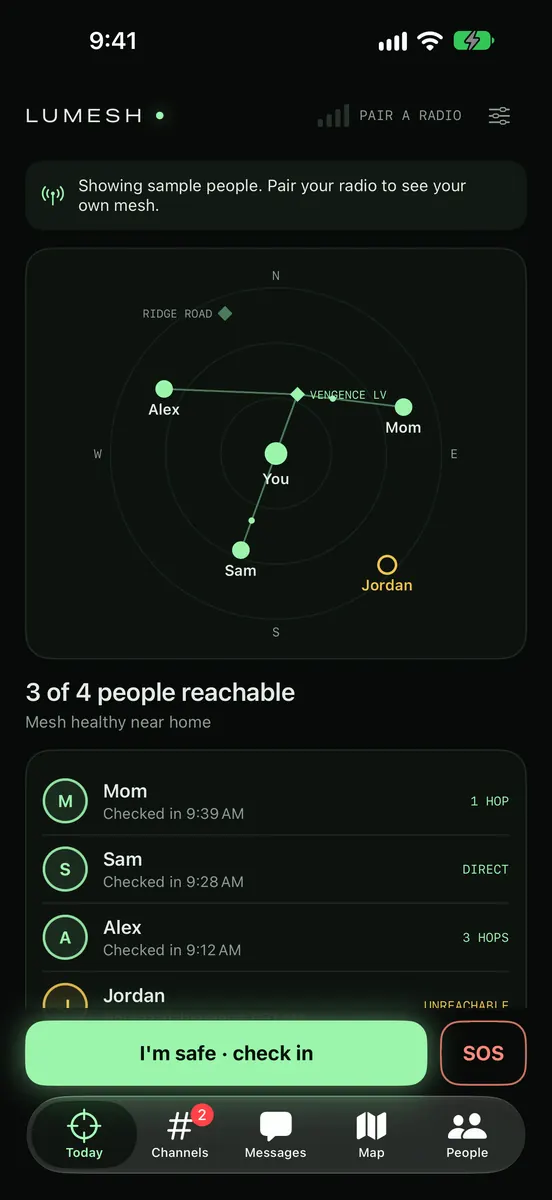
Lumesh Today screen in sample mode: a radar view of the mesh with You in the middle, Mom, Sam and Alex reachable through the repeater VENGENCE LV, Jordan unreachable, a list of when each person last checked in, and the I'm safe check-in and SOS buttons.
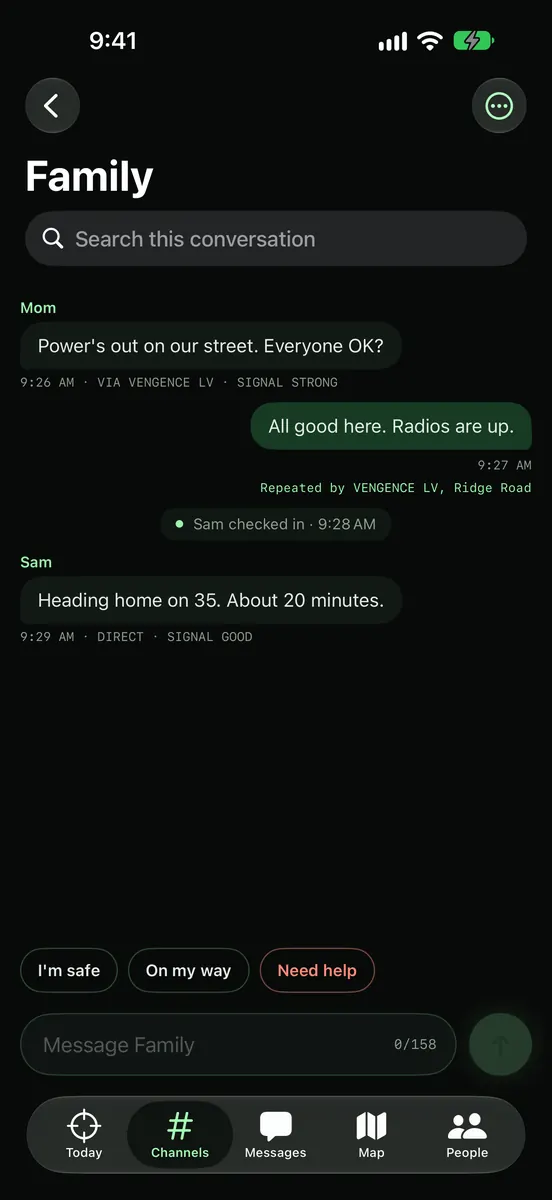
The Family channel in sample mode: Mom asks if everyone is OK during a power outage, the reply was repeated by VENGENCE LV and Ridge Road, Sam checked in, and quick replies I'm safe, On my way and Need help sit above the message box.

How it works

Your radio, your mesh, your family.

  1. Pair your radio

    A short first-run setup pairs your MeshCore companion radio over Bluetooth, checks the name other people see, and sets up a private Family channel. You can skip any step.

  2. Invite family in person

    Show your Family channel's QR code and they scan it with Lumesh on their iPhone or iPad, or paste the invite link.

  3. Talk radio to radio

    Messages, check-ins and SOS alerts travel radio to radio over the mesh, through repeaters, and never pass through us. There is no account to create.

For the family

Simple screens for the people you care about.

Today screen: 3 of 4 people reachable, mesh healthy near home, with each family member's hops and last check-in time.

Today

See who in your family is reachable, how many hops away they are, and when they last checked in. One tap sends "I'm safe" to your private Family channel.

Without a radio, Lumesh shows sample data so you can look around first. Every screenshot on this page is that sample data: made-up people and places.
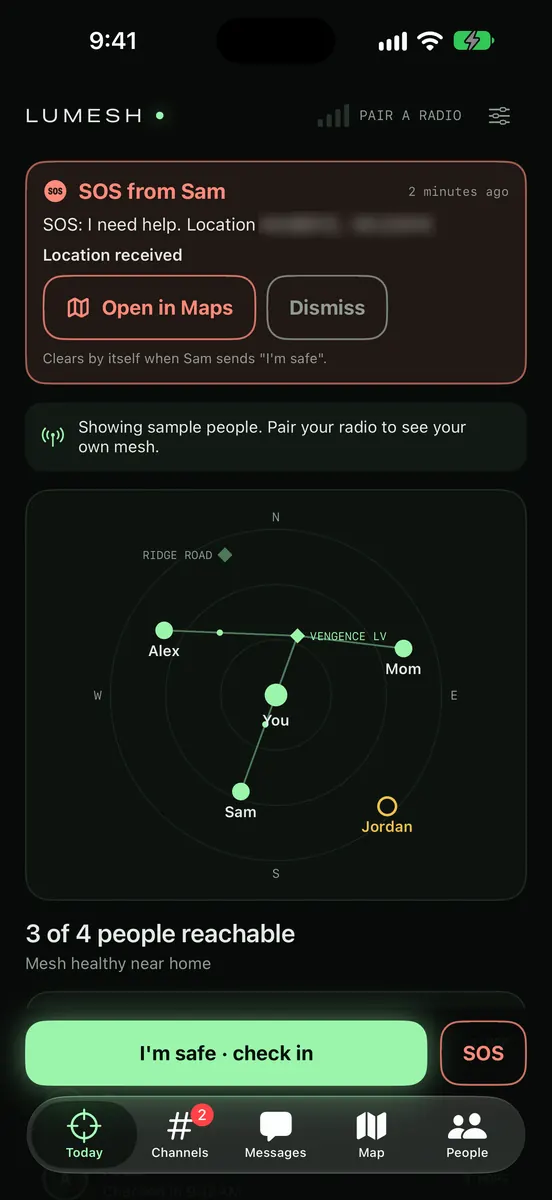
Today screen with an SOS from Sam at the top in coral: I need help, location received, with Open in Maps and Dismiss buttons and a note that it clears when Sam sends I'm safe. The sample coordinates are blurred.

SOSHelp, to the right people

Alert your family, with your radio's location if you choose, or also the open #emergency channel if your radio has one. Lumesh tells you who can read each one before you send.

When someone in your family sends an SOS, it stays at the top of Today, with where they are if they shared it, until they check in safe.

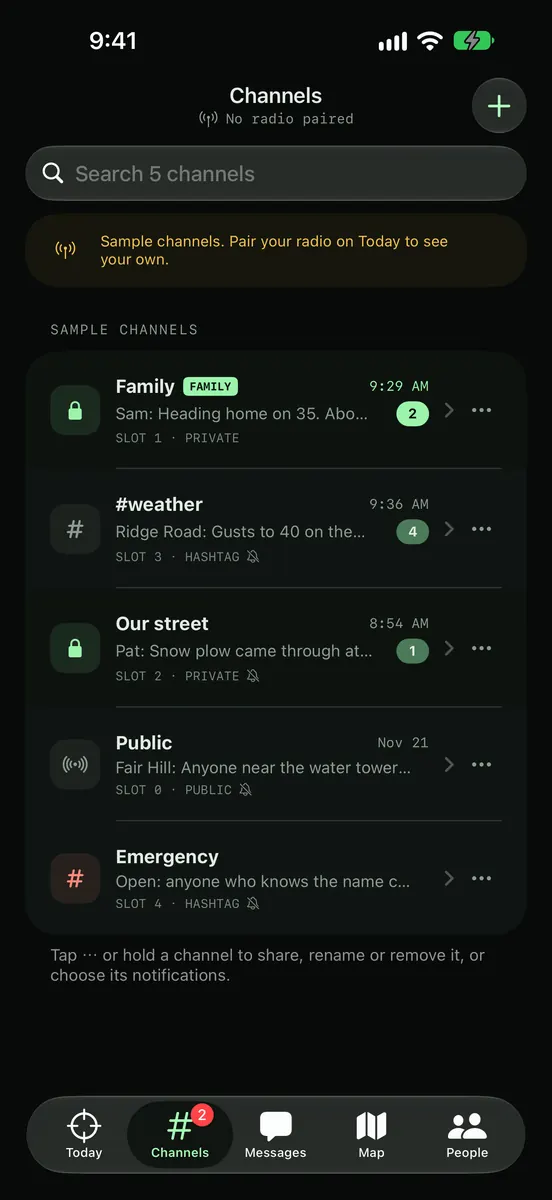
Channels screen: Family and Our street marked private, #weather and Emergency as hashtag channels and Public as open, each with its latest message and unread count.
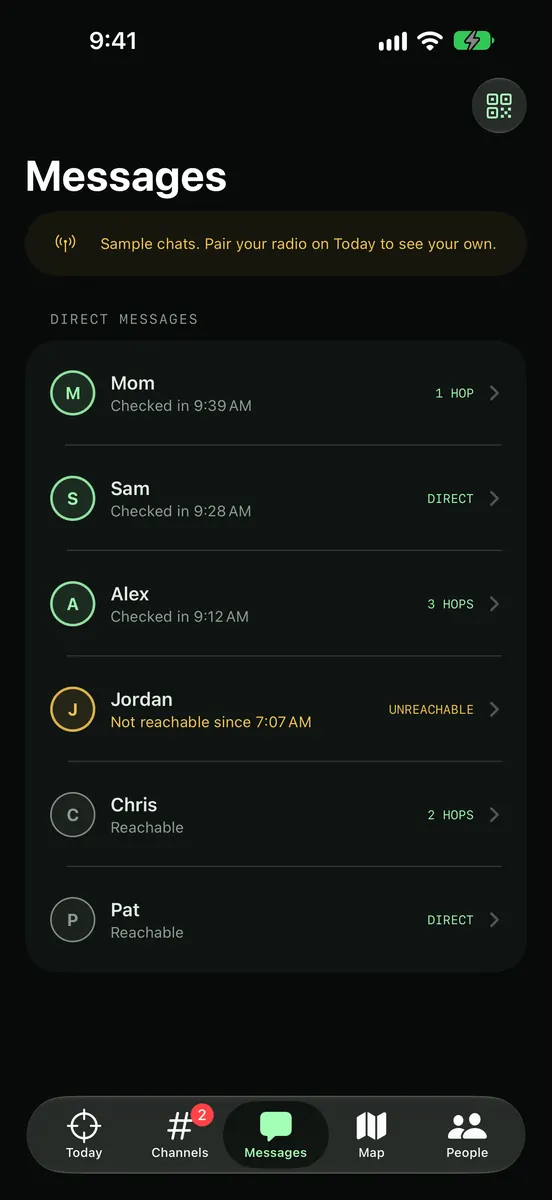
Messages screen: direct messages with Mom, Sam, Alex, Jordan, Chris and Pat, each showing hops or whether they are reachable.

Channels and Messages

  • Every channel on your radio, labelled private or open, with unread counts. Add, share, rename or remove them, and choose notifications per channel.
  • Direct chats, with "Delivered" when the other radio confirms.
  • Conversations are saved on your device. Family and direct messages raise a notification when Lumesh is in the background; open channels never do.
  • Messages from strangers wait quietly in Requests until you accept or block them. Block anyone, report a message by email, or hide open channels altogether.
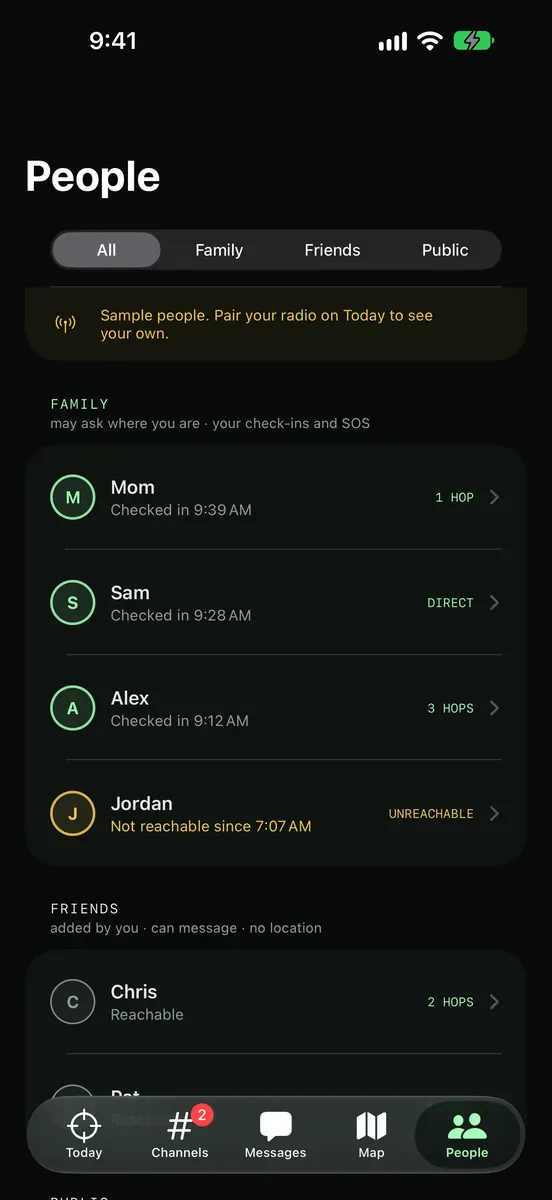
People screen with All, Family, Friends and Public tabs. Family may ask where you are and gets your check-ins and SOS; Friends are added by you and can message, with no location.

People and circles

Sort contacts into Family, Friends, Public and your own other radios. Lumesh saves each choice to your radio.

Choose who can see where you are: Family only, no one, or anyone. Ask where someone is, and their radio answers only if they allow it.

Verify in person: scan each other's code, and Lumesh warns you when a name and a key don't match or two contacts share a name. When someone leaves Family, Lumesh offers the Family channel a new key.

For repeater owners

The radio tools live in their own room.

Repeater tools sit in a separate Control Room, so the family screens stay simple.

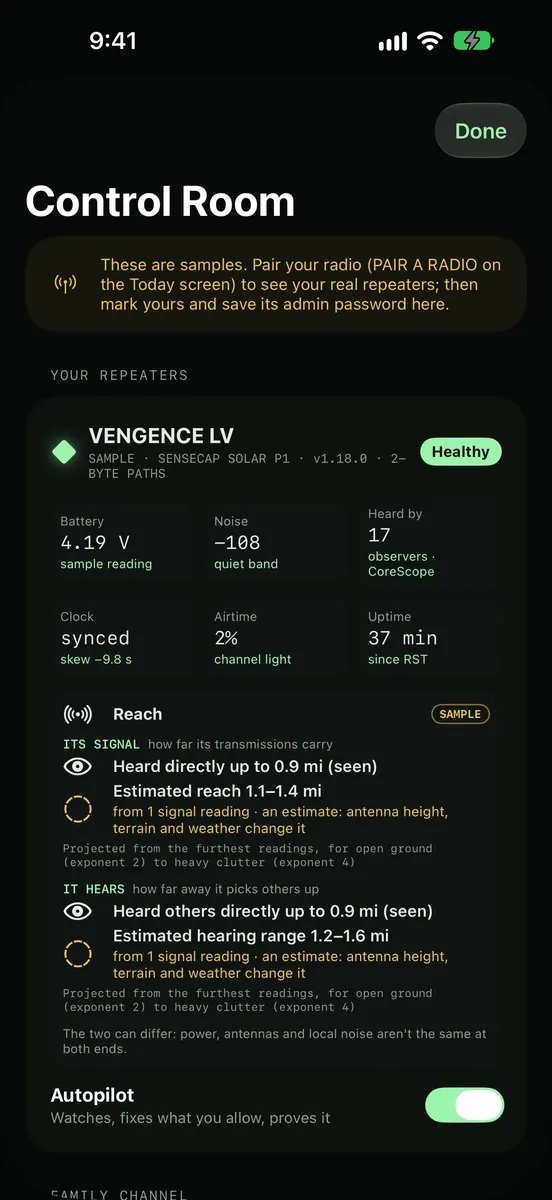
Control Room showing the sample repeater VENGENCE LV as healthy, with battery, noise, heard-by count, clock, airtime and uptime, a Reach panel giving how far it was heard and an estimated reach range marked as an estimate, and the Autopilot switch.

Control Room and Autopilot

  • Your repeaters: clock, battery, noise, airtime and uptime, read from the repeater, plus how far it has been heard and an estimated reach, clearly marked as an estimate.
  • Autopilot checks your repeaters on a schedule, tells you when one needs a person, and can reset a repeater's clock after a reboot.
  • Admin passwords stay in this device's Keychain.
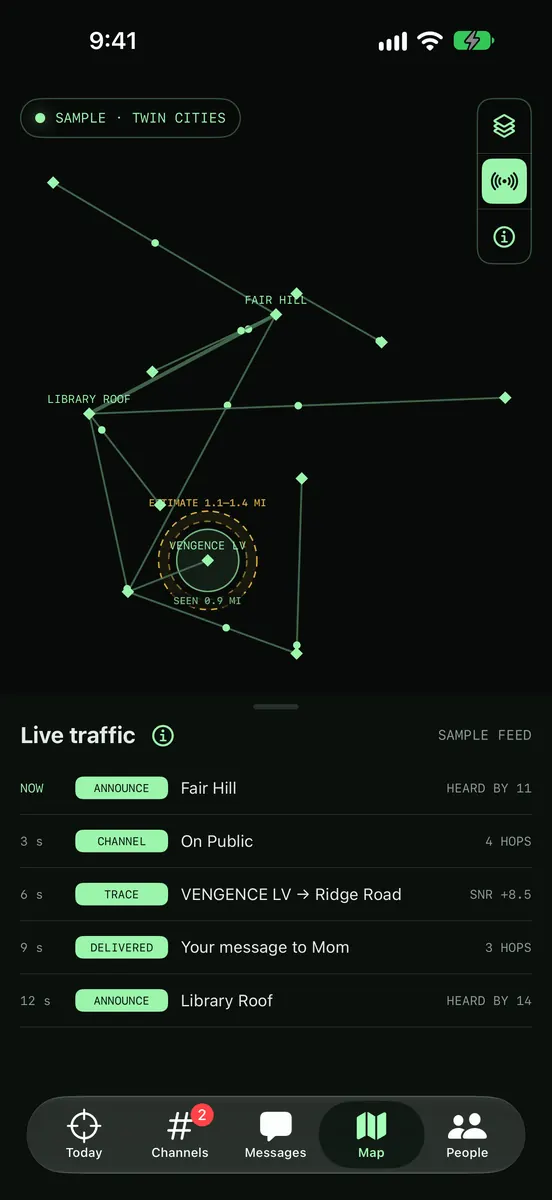
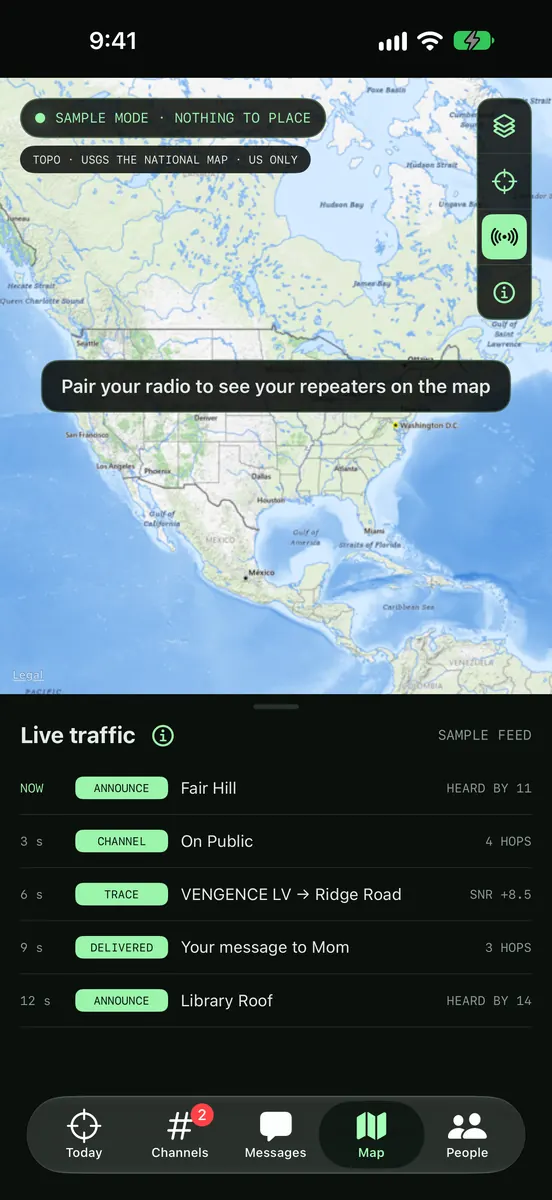
Map tab on the Mesh layer in sample mode: repeaters such as Fair Hill, Library Roof and VENGENCE LV joined by links, with reach circles around VENGENCE LV labelled seen 0.9 miles and estimate 1.1 to 1.4 miles, the layer, reach and legend buttons, and the live traffic feed below.
Map tab on the Topo layer: a USGS National Map of North America under the map controls, with the live traffic feed below.

Map, with layers and reach

Repeaters and a live traffic feed with a legend. The map opens on Mesh, drawn from your radio's own data, which loads nothing from the internet. Choose Apple Maps, satellite, terrain or USGS topo if you want imagery underneath; Lumesh tells you what each provider sees before the first map loads.

Turn on reach circles to see how far each repeater has been heard, and an estimate of its range.

Reach is an estimate: antenna height, terrain and weather change it.

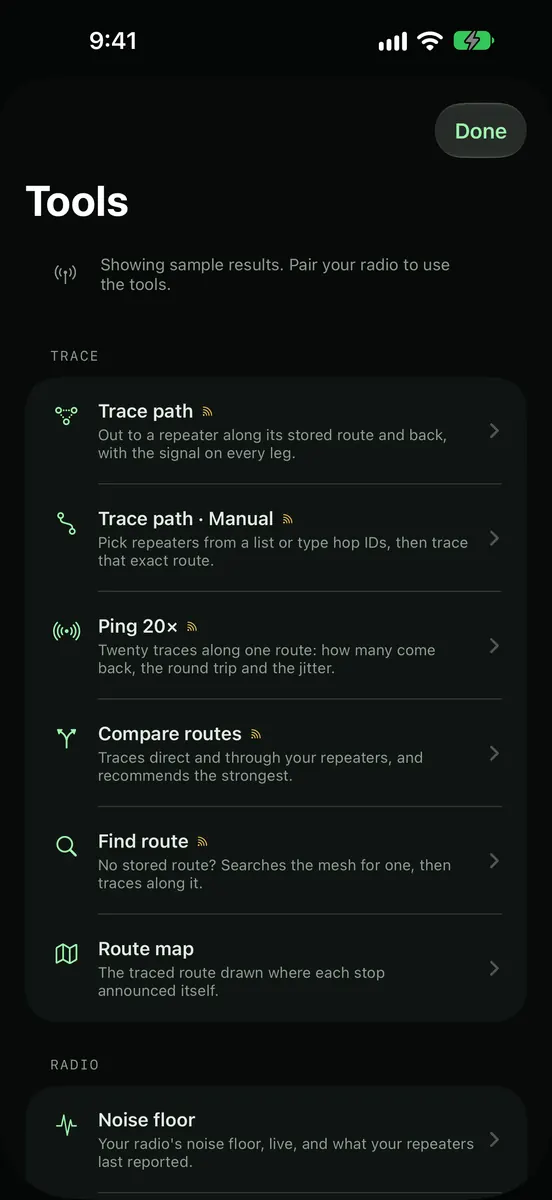
Tools screen listing Trace path, Trace path Manual, Ping 20 times, Compare routes, Find route, Route map and Noise floor, each with a one-line description.
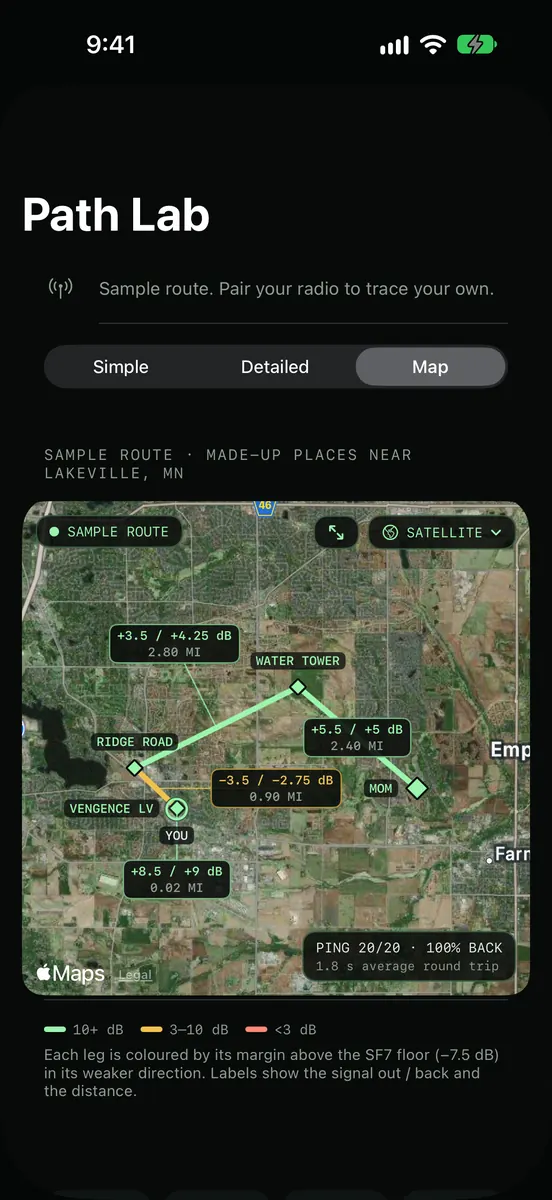
Path Lab Map view of a sample route with made-up places near Lakeville, Minnesota over satellite imagery: You to VENGENCE LV, Ridge Road, Water Tower and Mom, each leg labelled with signal out and back and distance, the weakest leg in amber.

Tools and Path Lab

Trace a route hop by hop and see it on a map, compare routes, ping, watch your noise floor, and discover nearby repeaters.

Path Lab colours every leg of a traced route by its margin above the point where the radio stops decoding, and names the weak link, so you know where a better antenna helps most.

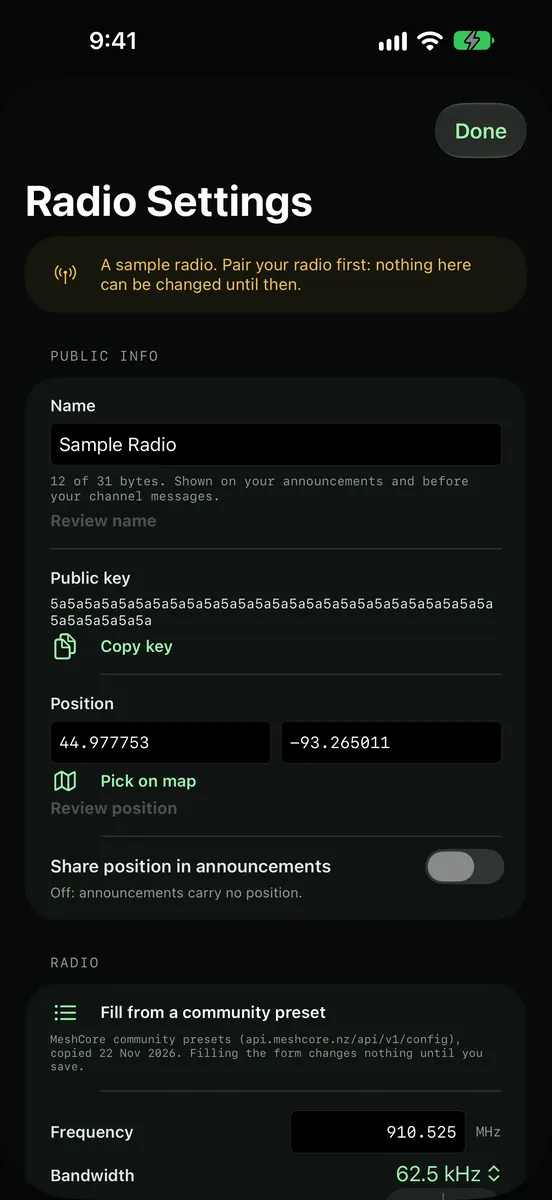
Radio Settings for a sample radio: name, public key with a Copy key button, position with Pick on map, a Share position in announcements switch that is off, and the radio's frequency and bandwidth with a Fill from a community preset option.

Radio Settings

Your radio's name, position, frequency and power, with plain warnings before anything changes. Autopilot never changes radio settings.

iPhone and iPad

Room to read on iPad.

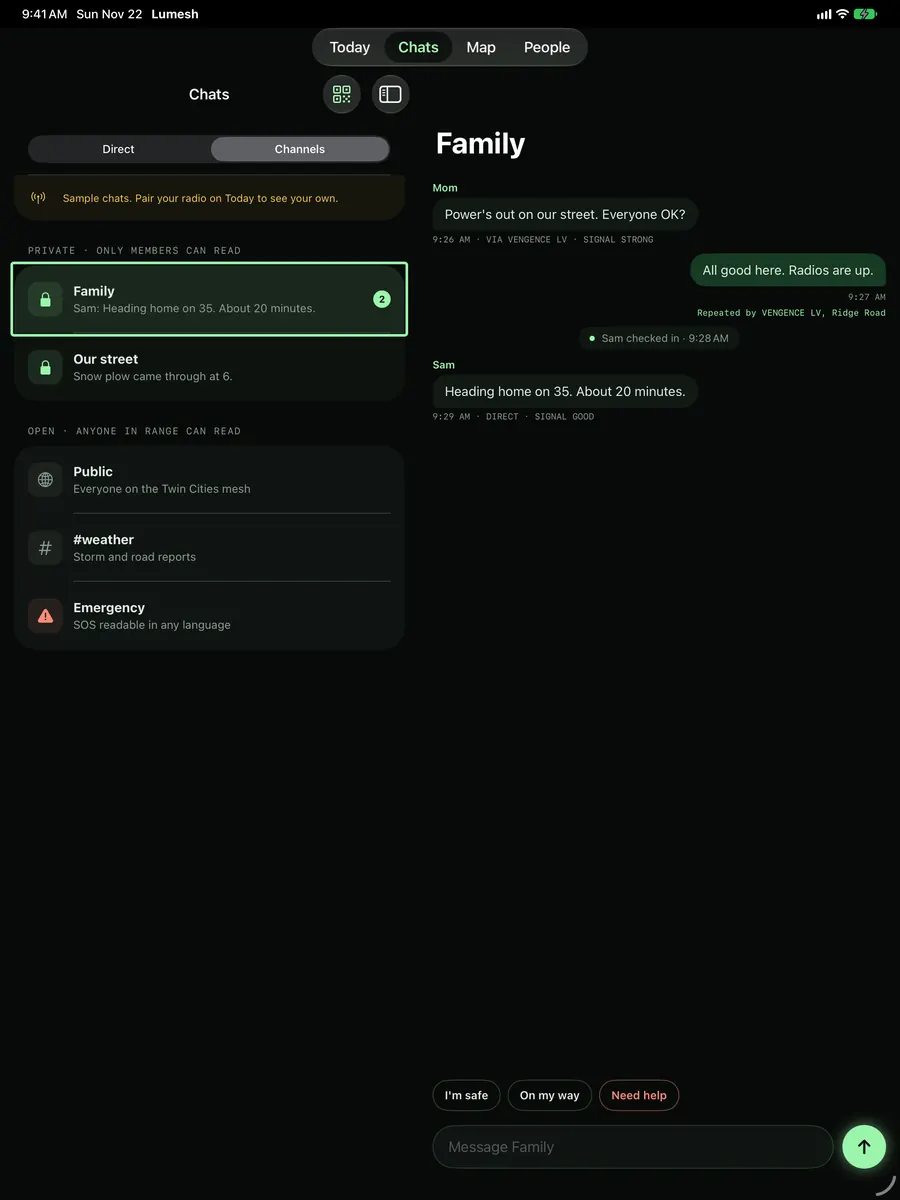
On iPad, the list and the conversation sit side by side.

Lumesh on iPad in sample mode: the channel list on the left with Family selected, and the Family conversation open on the right.

What you need

Before you download.

A MeshCore companion radio

A small LoRa radio running MeshCore's companion firmware, with Bluetooth, such as a Heltec, RAK or SenseCAP device. Lumesh does not work as a messenger without a radio.

A radio running repeater or room-server firmware won't appear in the list; once your companion radio is paired, you can check on your repeaters from Control Room.

People on the same mesh

You also need other people, or repeaters, on the same mesh. How far a message goes depends on the radios, antennas and repeaters between you.

Without a radio, Lumesh shows sample data so you can look around first.

Privacy

We don't collect your data.

Lumesh has no account, no analytics, no ads and no servers of ours. Your messages, contacts and settings stay on your device and your radio. Lumesh uses the internet only for CoreScope and map imagery, and only if you turn them on. This website sets no cookies and runs no scripts or trackers.